Table of Contents
Content Navigation
Navigate within content, zoom in/out and search OCRed content

Updated
by Help Guide
Table of Contents
What can you do
Content navigation in Axiom Pro refers to the tools and features that help users move through documents and access related information efficiently. This includes navigating between pages within a document, jumping to specific sections using bookmarks or thumbnails. Effective content navigation enhances user productivity and ensures quick access to relevant information.
How To
View Thumbnails
- When viewing document
- Click on Navigation

- In the sub-menu, click on Show Thumbnails
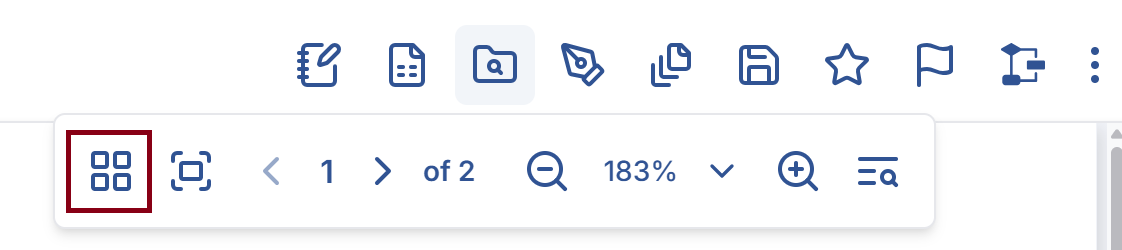
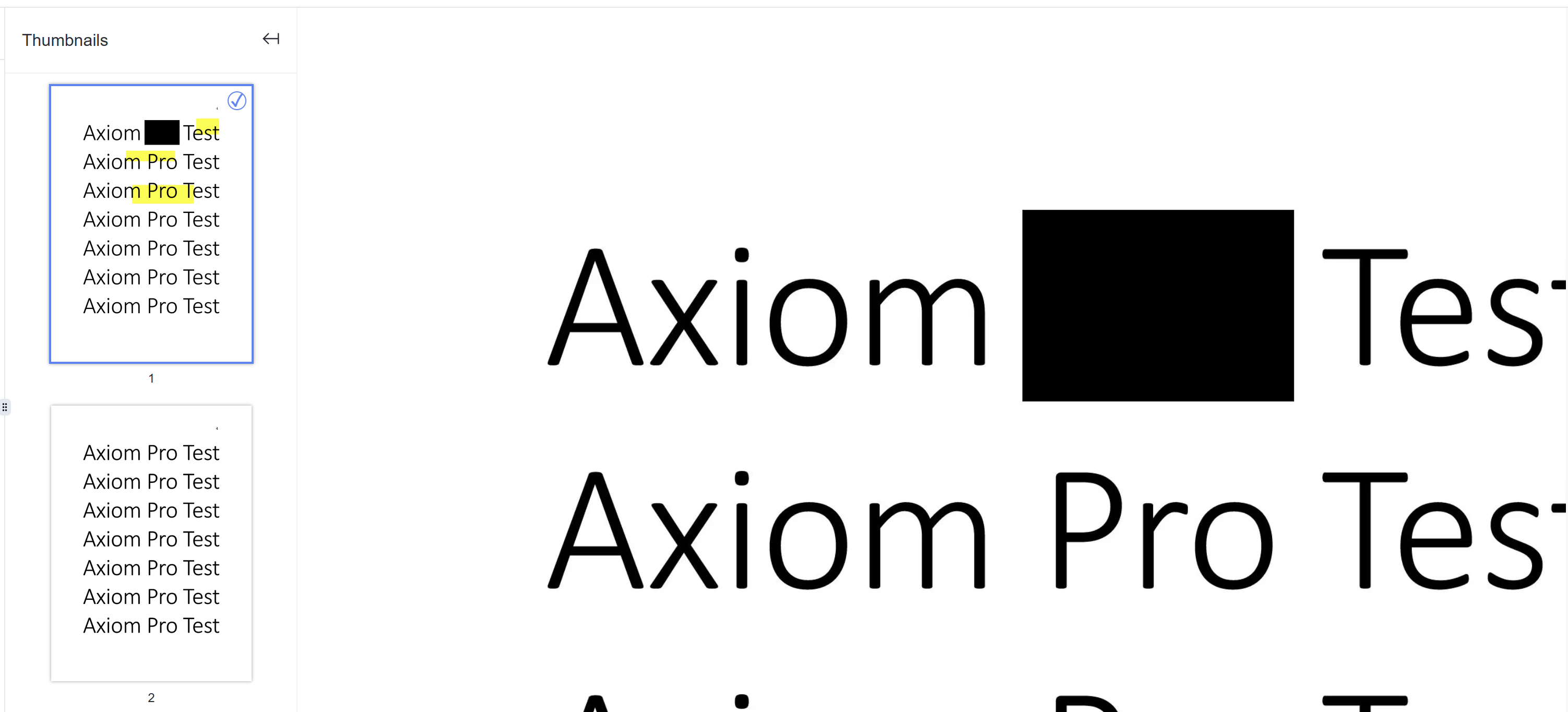
- Thumbnails will open in the viewer
Full Screen
- When viewing document
- Click on Navigation
- In the sub-menu, click on Full Screen
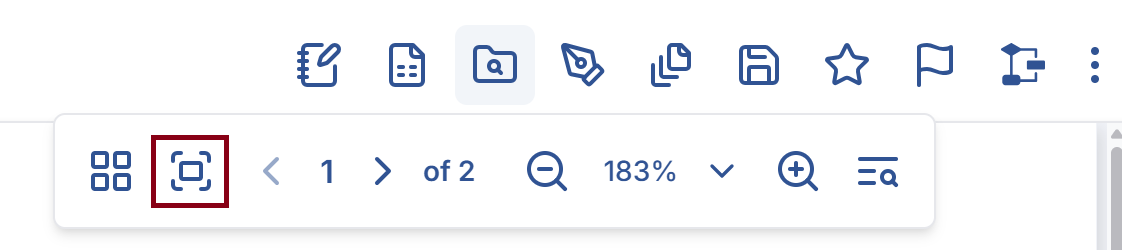
- Content will open in full screen view
Press Esc on the keyboard to exit full screen
Pagination
- When viewing document
- Click on Navigation
- In the sub-menu, use the previous or next arrows to move through pages
- To jump to a page, click on the page number and enter the page where you want to go
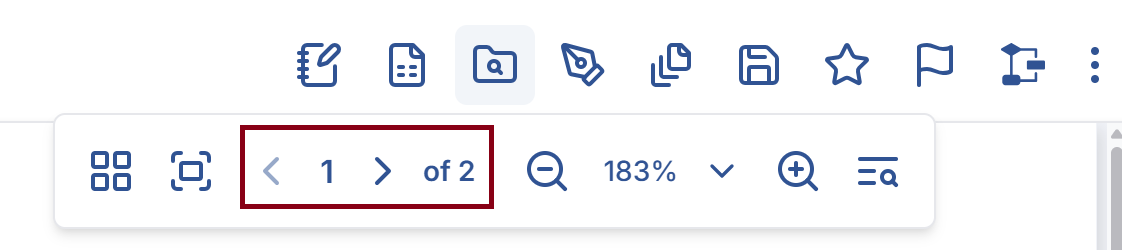
- To jump to a page, click on the page number and enter the page where you want to go
Zoom in / Zoom Out
- When viewing document
- Click on Navigation
- In the sub-menu, use the magnifying glass icons, to enlarge and reduce the size of the content
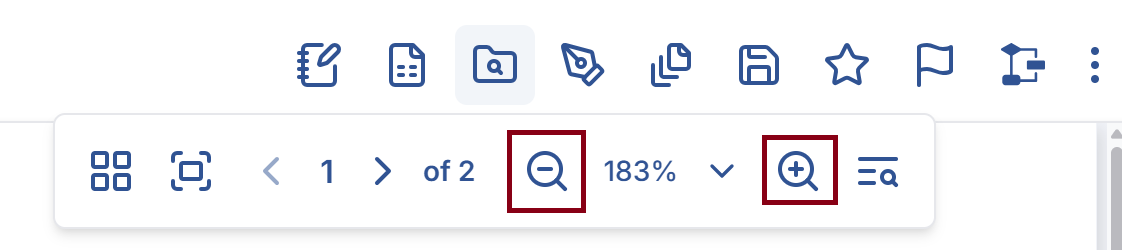
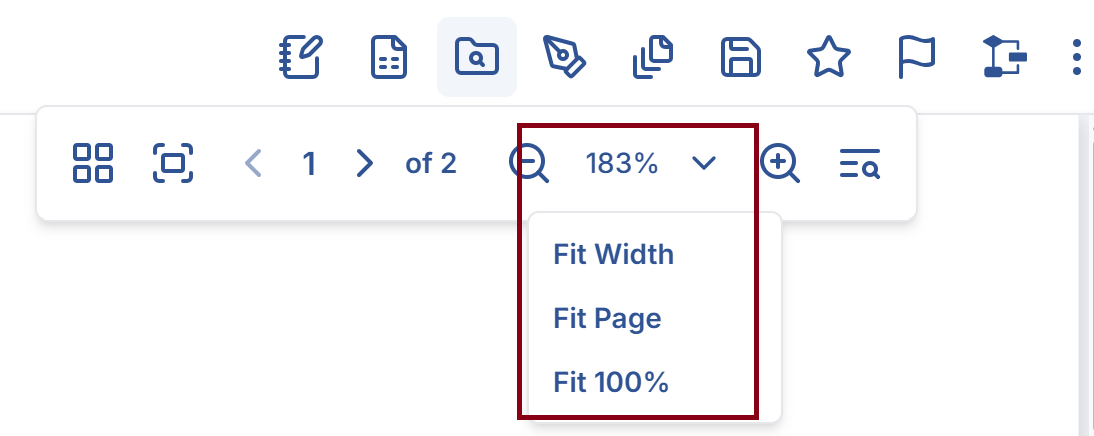
- To fit the content to a predefined ratio, click on the zoom percentage dropdown
Search
This option allows you to search the page or document by keyword.
Only works when document is OCR'ed
- When viewing document
- Click on Navigation
- In the sub-menu, click on Search
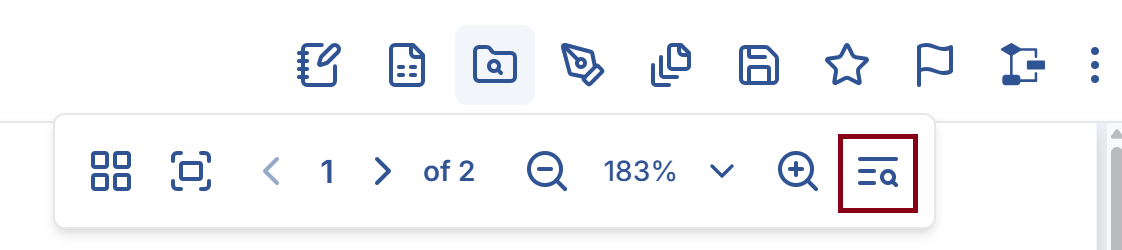
- This will open the Search options
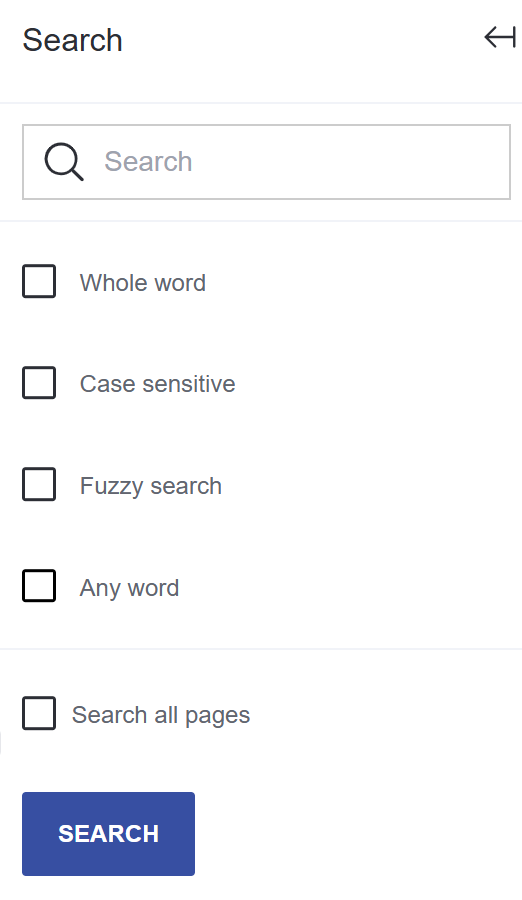
- Enter the text to search
- Select the option that needs to searched as
- Click Search
How did we do?
Content Information
Annotations and Redactions